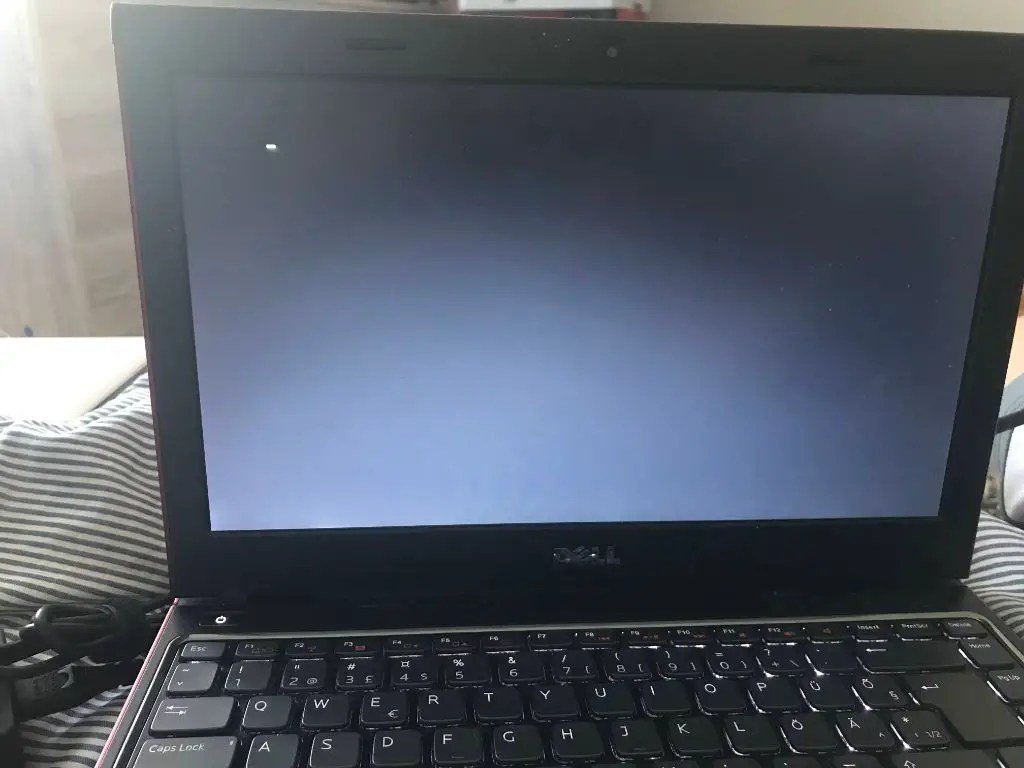
There's hardly a more frustrating tech moment than when your laptop is stuck on a black screen. You press the power button, hear the fans whir, maybe even see some indicator lights, but your display remains stubbornly blank. It feels like your laptop is taunting you, powered on but completely useless. The good news? This "blank screen of death" isn't always a death sentence for your device. In fact, a significant majority of these issues are entirely fixable right from home.
This comprehensive guide is your starting point, designed to help you understand the common culprits behind a black screen – from simple power hiccups and loose connections to more complex software glitches or hardware failures. We'll walk you through the diagnostic process step-by-step, helping you pinpoint the problem and guide you to the exact solutions you need.
Quick Checks to Bring Your Screen Back to Life
Before you panic, many black screen problems have surprisingly simple solutions. Often, it's just a matter of resetting something or confirming a connection. These initial checks are low-effort, high-reward, and critical for narrowing down the issue.
Power & Static Discharge: The First Resort
Sometimes, all your laptop needs is a good reset to clear out any electrical "confusion." Start by ensuring your charger is working and your battery isn't critically low. A flickering or unlit charger LED can be a tell-tale sign of a power supply issue.
After checking power, a hard power cycle and static discharge is your next go-to. Unplug your laptop, remove the battery (if possible), then hold the power button for 15-45 seconds. This drains any residual power that might be causing a hang-up. Reconnect everything and try powering on again. For more detailed instructions and further initial troubleshooting steps, Here are a few options for getting started with these basic checks.
External Display Test: Is Your Laptop Working, Just Not Showing?
One of the most crucial diagnostic steps is connecting your laptop to an external monitor or TV. If your laptop's display is black but an external screen works perfectly, it immediately tells you the computer itself is likely functional, and the problem lies within your laptop's internal display, its cable, or the backlight.
- How to Test: Connect your laptop to a monitor via HDMI, VGA, or USB-C. Once connected, cycle through display modes using
Win + P(Windows),Command (⌘) + F1(older macOS), orCtrl + Full Screen(ChromeOS). Wait 5-10 seconds between attempts. - Flashlight Test: If the external display shows nothing, but you suspect your laptop might be working, try shining a bright flashlight at an angle across your laptop screen. If you faintly see your desktop or login screen, it confirms the display is rendering, but its backlight has failed. This points directly to a hardware issue.
Physical Inspection: Cables, RAM, and Overheating
Visually inspecting your laptop can reveal surprisingly simple fixes. Slowly move your laptop's lid back and forth; if the screen flickers or blinks, a loose or fractured display cable at the hinge is often the culprit. Similarly, sometimes RAM sticks can become slightly dislodged. Reseating them (power off, disconnect, open, remove, reinsert) can resolve many "no display" issues. Listen for unusual fan noises or lack thereof, which could indicate overheating or a deeper board problem.
Diving Deeper: Software Glitches vs. Hardware Failures
Once basic checks are done, the path forward typically splits: is it a software issue preventing Windows, macOS, or Linux from displaying, or is there a physical component of your laptop that's failed?
When Software is the Culprit: Operating System Fixes
If you suspect your laptop is powering on but the operating system isn't loading correctly or the graphics driver has crashed, software-level solutions are your next focus. This is especially true if you can hear Windows sounds, or if an external monitor briefly shows something.
- Fast Resets for Graphics: On Windows, try pressing
Win + Ctrl + Shift + Bto reset the graphics driver. If you can log in and see a cursor,Ctrl + Shift + Esc(orCtrl + Alt + Delthen Task Manager) to restartexplorer.execan sometimes bring your desktop back. - Booting into Safe Mode: This is a lifesaver for diagnosing software conflicts. By forcing your laptop to boot into Safe Mode (typically via repeated failed starts into the Windows Recovery Environment), you can load a minimal version of your OS, allowing you to roll back drivers, disable problematic startup apps, or even create a new user profile.
- System File and Boot Sector Repairs: Using the Command Prompt within Safe Mode or the recovery environment, you can run tools like
sfc /scannowanddism /online /cleanup-image /restorehealthto repair corrupted system files, orbootreccommands to fix boot configuration data. For a comprehensive walkthrough of these and other software-related solutions, dive into our guide on Software & Operating System Related fixes.
Pinpointing Hardware Problems
If software solutions yield no success, or if your initial tests strongly pointed towards a physical issue (like the flashlight test or flickering screen), then it’s time to seriously consider hardware. This involves looking at components like RAM, storage drives, and even the motherboard itself.
- RAM and Storage Diagnostics: Reseating RAM is a quick win if successful. If not, testing individual RAM sticks or running memory diagnostic tools can identify a faulty module. Ensuring your HDD or SSD is detected in BIOS and checking its health can rule out storage as the problem.
- Deeper Board Issues: Sometimes, a complete lack of lights, fans, or charging indications points to a more severe problem with the charging port, power rails, or the motherboard itself. These require more advanced diagnostics and often professional repair. To effectively Diagnose black screen hardware failures, our dedicated pillar guide offers detailed steps and insights.
Addressing Specific Scenarios and Firmware Issues
Not all black screens are created equal. Different operating systems and underlying firmware can present unique challenges and solutions.
BIOS/UEFI and Firmware Updates
Your laptop's Basic Input/Output System (BIOS) or Unified Extensible Firmware Interface (UEFI) is the first software that runs when you power on. A corrupted BIOS setting or outdated firmware can prevent your display from initializing. Resetting your BIOS to default settings is a common fix, and sometimes a BIOS update (though risky if done incorrectly) is necessary if it addresses known display issues. You might even need to disable "Fast Startup" in Windows or tweak hybrid graphics settings within the BIOS.
Platform-Specific Troubleshooting: macOS, ChromeOS, Linux
Each operating system has its own unique recovery tools and methods for dealing with a black screen.
- macOS: For Apple users, resetting NVRAM/PRAM or the System Management Controller (SMC) can work wonders. Booting into Safe Mode or macOS Recovery provides powerful utilities like Disk Utility and the option to reinstall macOS.
- ChromeOS: Chromebooks benefit from a simple hard reset (
Refresh (⟳) + Power) or an EC (Embedded Controller) reset. - Linux: Linux users might need to access the TTY terminal (
Ctrl + Alt + F2) to restart display managers, or even roll back kernel updates from GRUB.
For comprehensive guidance on these specialized fixes and more, refer to our pillar on Addressing Specific Scenarios Leading to a black screen, ensuring you get tailored advice for your particular system.
Data Safeguarding and When to Call the Professionals
Before attempting any invasive hardware work or sending your laptop in for repair, protecting your data is paramount. A black screen doesn't mean your files are gone, just inaccessible.
Recovering Your Precious Files
Even with a non-functional screen, your hard drive or SSD is often perfectly fine. You can create a bootable USB drive (with Windows, macOS, or a Linux Live OS) on another computer, boot your black-screen laptop from it, and copy your essential files to an external drive. Another reliable method involves removing the laptop's internal drive, placing it in a USB enclosure, and accessing it from a working computer. To learn the best strategies for how to Recover data from black screen laptops, our dedicated guide provides all the steps you need.
Knowing When It's Time for a Technician
While many black screen issues are fixable at home, some problems warrant professional attention.
- Hardware Failures: If the flashlight test reveals a faint image but no backlight, or if lid movement consistently flickers the screen (suggesting a cable issue), these are clear signs a hardware repair is needed.
- Deeper Motherboard Issues: Repeating beeps, specific error LED patterns, or the smell of burnt electronics strongly suggest a serious internal fault.
- Warranty: If your laptop is still under warranty, avoid opening the chassis yourself. Focus on software fixes and external display testing, then contact the manufacturer.
- When all else fails: If you've diligently tried all the software and basic hardware troubleshooting steps and your laptop remains stubbornly black, a technician's expertise will be invaluable.
Preventing Future Black Screen Headaches
While you're working to fix your current black screen, it's also a great time to think about prevention. Simple habits can save you from future frustrations:
- Keep your graphics and chipset drivers updated directly from the manufacturer's website.
- Maintain your BIOS/UEFI firmware with the latest stable versions.
- Regularly back up your critical data – this cannot be stressed enough!
- Create system restore points before major operating system updates.
- Avoid forced power-offs, especially during updates.
- Keep your laptop's vents clear of dust to prevent overheating.
- Handle your laptop lid gently to minimize stress on display cables and hinges.
A black screen can be daunting, but with the right approach and a methodical process, you can often bring your laptop back to full working order. Don't give up hope; your screen is waiting to light up again!