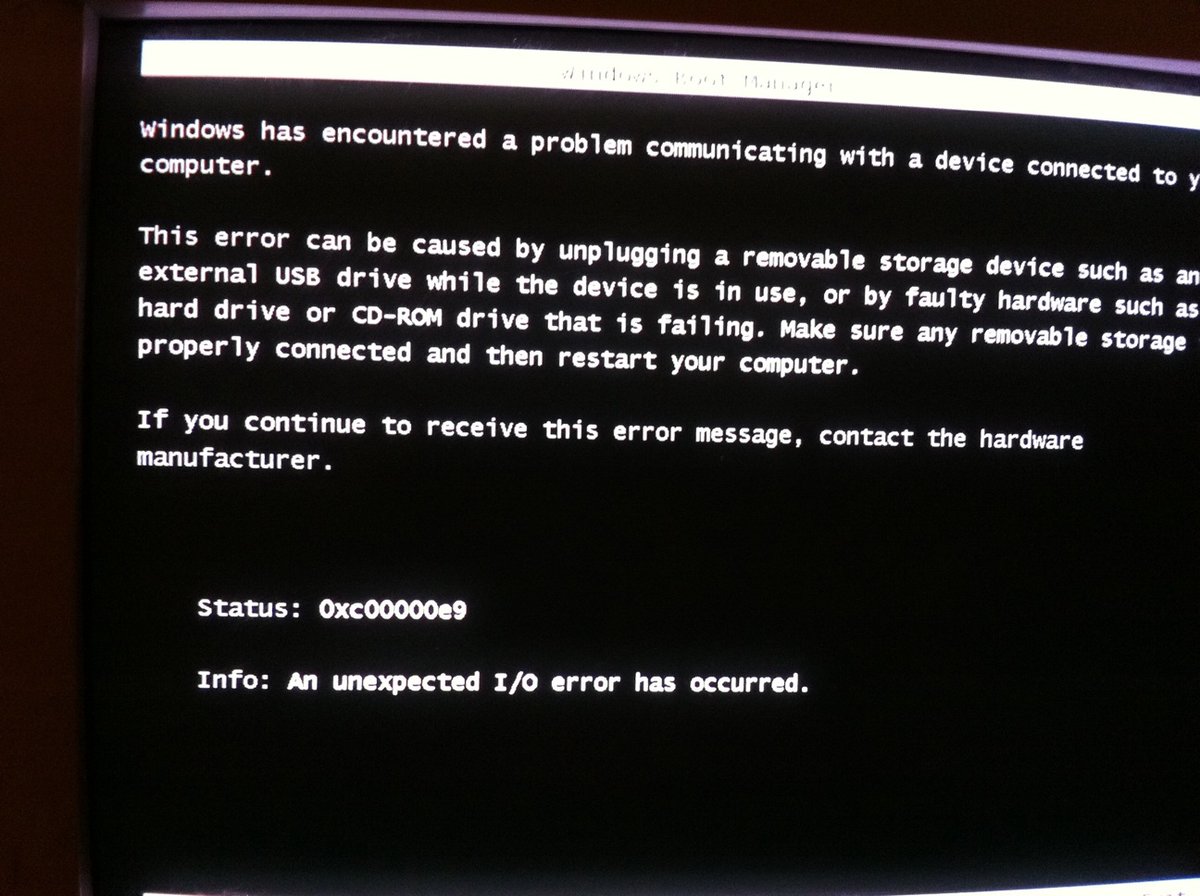
When your computer screen suddenly goes dark, silent, and unresponsive, it can feel like your digital world just hit a brick wall. That unsettling black screen isn't just an annoyance; it's your device trying to tell you something critical, often through cryptic error codes or a series of beeps. Understanding Error Codes & Beeps for Black Screen Diagnosis is the key to unlocking these silent messages and bringing your system back to life.
This isn't about guesswork; it's about becoming a detective, gathering clues, and methodically narrowing down the problem. From a simple loose cable to a deeper hardware malfunction, your device often provides specific audio or visual cues that, once deciphered, point directly to the culprit.
At a Glance: What to Do When Your Screen Goes Black
- Don't Panic: Most black screen issues are resolvable with basic troubleshooting.
- Check the Obvious First: Power, monitor, and video cables are common culprits.
- Listen for Beeps: Motherboard beep codes are critical hardware diagnostic signals.
- Look for LEDs: Many modern motherboards use diagnostic LED lights.
- Note Any Messages: Even a brief on-screen error code is a vital clue.
- Identify Your BIOS: Essential for interpreting beep codes correctly.
- Safe Mode is Your Friend: A crucial step for software/driver issues.
- Keep Records: Documenting issues helps future troubleshooting.
The Silent Scream: Why Your Screen Goes Black (and What Beeps Mean)
A black screen is the ultimate communication breakdown. Your computer's internal components are working, but the visual output, the window into your digital world, has vanished. This usually happens when the Power-on-Self-Test (POST)—the initial diagnostic routine your computer runs every time it starts—encounters a problem before it can even display anything on screen.
During POST, your computer's Basic Input/Output System (BIOS) or Unified Extensible Firmware Interface (UEFI) checks critical hardware like the CPU, RAM, and graphics card. If everything is fine, you'll hear a single, quick beep (on systems with a speaker) and then see your operating system load. But if something goes wrong early in this process, the system can't tell you visually what's happening. Instead, it resorts to a primal language: patterns of beeps or flashing LED lights. These are invaluable error codes, providing direct diagnostic feedback when your display can't.
First Steps When the Screen Stays Dark: Your Initial Troubleshooting Playbook
Before diving into complex codes, always start with the basics. These simple checks often resolve the issue without needing to decipher any arcane messages.
1. The Power Cycle Reset
It sounds too simple, but a full restart can clear temporary glitches.
- Turn off your device completely (hold the power button if necessary).
- Unplug it from the wall.
- Wait for 30 seconds to a minute to ensure residual power drains.
- Plug it back in and try to turn it on.
2. Cable & Connection Cavalry
Loose or faulty cables are surprisingly common culprits.
- Power Cables: Ensure the power cable is securely plugged into both the device and the wall outlet. If it's a desktop, check the connection to the power supply unit (PSU).
- Video Cables: Is the cable securely connected to both your computer/laptop and your monitor? Try unplugging and re-plugging it firmly.
- Inspect for Damage: Check cables for any visible bends, cuts, or damaged pins.
- Try Alternatives: If you have a spare HDMI, DisplayPort, or DVI cable, swap it out. If you have another monitor, test your computer with it, or test your monitor with another computer to isolate the issue.
3. Booting into Safe Mode
If you can get anything on screen, even briefly, Safe Mode is your best friend. It starts Windows (or other OS) with only essential drivers and services, which can help pinpoint if the problem is software or driver related.
- How to Access Safe Mode: The exact method varies, but often involves restarting your computer and repeatedly pressing a specific key (like F8, F2, or Shift + F8) during startup. For Windows 10/11, if you can't see anything, you might need to interrupt the boot process three times by holding the power button until it shuts off. On the fourth boot, it should enter the Automatic Repair environment, from which you can access Safe Mode.
- What to Do in Safe Mode: If you can boot into Safe Mode, it strongly suggests a software or driver conflict.
- Uninstall recent programs: Did you install anything new before the black screen? Remove it.
- Roll back drivers: Specifically, graphics drivers.
- Update drivers: Sometimes, an old driver is the problem.
4. Seeking External Assistance
If these initial steps don't work, don't despair. Your next clues lie in the specific error codes or beep patterns your system is trying to give you.
Decoding Visual Clues: LED Lights and On-Screen Messages
Even a brief flash of an LED or a momentary text error can be a goldmine of information.
Observe LED Flashing Patterns
Many devices, especially laptops and some desktops, use LED lights (e.g., power light, battery light) to communicate errors through specific flash sequences.
- Consult Your Manual: This is crucial. Your device's user manual will list what each flash pattern signifies. For example, three long flashes followed by two short flashes might indicate a specific RAM error on a Dell laptop.
- Note the Color and Duration: Some LEDs change color or have different patterns for "long" vs. "short" flashes.
Online Search: Your Digital Detective Partner
If you see any text on screen, even if it vanishes quickly, write it down precisely.
- Search Your Device Model + Error: Type your computer's make and model (e.g., "HP Omen 15 black screen error 0xc0000225") into a search engine. You'll likely find forums, support articles, or user experiences with similar issues and solutions.
Common Culprits Behind the Black Screen
Before we dive into specific error codes, understanding the general categories of problems can help you approach the diagnosis more effectively.
1. Graphics Drivers: The Visual Messenger Service
Outdated, corrupted, or incompatible graphics drivers are a leading cause of black screens, especially after an update or new software installation. The driver is the software that allows your operating system to communicate with your graphics card. If it's faulty, your screen goes dark.
- Solution:
- Update: If you can boot into Safe Mode (or another working display), update your graphics drivers from the manufacturer's website (NVIDIA, AMD, Intel).
- Rollback/Reinstall: Sometimes, uninstalling the current driver and reinstalling a fresh one (or an older, stable version) can fix the issue.
2. Hardware Issues: The Physical Breakdown
Problems with physical components can cause a black screen.
- Graphics Card (GPU): A faulty dedicated graphics card is a common culprit. If you have a desktop with integrated graphics (on your CPU), try removing your dedicated GPU and plugging your monitor directly into the motherboard's video output.
- RAM (Random Access Memory): Loose or faulty RAM modules can prevent your computer from booting.
- Solution: Power down, open your computer, and carefully unclip and re-seat your RAM modules. Try booting with only one module installed if you have multiple.
- Video Cable: As mentioned, a damaged or loose video cable can trick your system into thinking there's no monitor.
- Monitor Itself: Test your monitor with another device (like a game console or another computer) to rule out the monitor as the problem.
3. Software Incompatibility: The Clash of Programs
Sometimes, newly installed software or a conflicting program can interfere with your operating system's ability to display.
- Solution: If you can access Safe Mode, uninstall any recently installed programs or updates. Ensure both your operating system and software are updated to their latest, compatible versions.
4. Outdated Drivers (General): The Forgotten Updates
Beyond graphics, other drivers (chipset, audio, etc.) can also cause system instability leading to a black screen.
- Solution: Regularly check your device manufacturer's website for the latest drivers or use reputable driver update tools.
Specific Error Codes: What They Mean and How to Fix Them
When Windows (or another OS) tries to load but fails, it might display a specific alphanumeric code. These codes are invaluable.
- 0xc0000225: The Boot Configuration Bummer
- Meaning: This often points to a problem with your Boot Configuration Data (BCD) or a driver/program that's preventing the OS from starting. It essentially means Windows can't find critical boot files.
- Solutions:
- Safe Mode & Uninstall: Boot into Safe Mode and uninstall any programs or updates installed just before the error.
- Update Drivers: Especially hardware drivers.
- Hard Drive Scan: Run
CHKDSKon Windows (e.g., via the command prompt in Safe Mode or recovery environment) orfsckon Linux to check for disk errors.
- 0x0000007B: The Hard Drive Headscratcher
- Meaning: This code usually relates to issues with your hard drive, its cables, or incorrect boot settings in your BIOS/UEFI. It signifies a problem with accessing the boot device.
- Solutions:
- Cable Check: Power off and verify that your hard drive's data and power cables are securely connected.
- BIOS Boot Settings: Restart and enter your BIOS/UEFI settings (usually by pressing F2 or Delete repeatedly during startup). Check the boot order to ensure your primary drive is selected. You might also need to switch between IDE, AHCI, or RAID modes for your storage controller.
- Startup Repair: Use a Windows installation or recovery disc/USB to access the "Startup Repair" option, which can often fix BCD or boot sector problems.
- 0xc000021a: The System Corruption Conundrum
- Meaning: Often called a "fatal system error," this code indicates a critical process like
csrss.exe(Client Server Runtime Subsystem) orwinlogon.exehas failed. This usually stems from corrupted system files, recent problematic updates, or software installations. - Solutions:
- Safe Mode & Uninstall: Access Safe Mode and immediately uninstall any recently installed programs or updates.
- System Restore: If you have restore points, perform a system restore to a previous working state. You can usually do this via the recovery environment or Safe Mode with Command Prompt (type
rstrui.exe). - Clean Reinstall (Last Resort): If all else fails, a clean reinstallation of Windows might be necessary. Crucially, back up your data first if possible.
- "System startup error": The Generic OS Blocker
- Meaning: A general message indicating a problem preventing the operating system from loading, often related to the hard drive or OS files.
- Solution: Similar to the above, try restarting into Safe Mode or use a startup repair tool from your OS installation media.
- "Blue Screen Error": The Broader Catastrophe
- Meaning: While not always a black screen, a blue screen (BSOD) followed by a black screen means a more serious system crash, often due to hardware failure, driver conflicts, or critical software errors. The text on the blue screen itself (e.g.,
KERNEL_MODE_HEAP_CORRUPTION) is the true error code. - Solution: Note the specific error message on the blue screen. Update drivers, run hardware diagnostics (especially RAM and hard drive), or consider an operating system reinstall. For more detailed laptop black screen troubleshooting tips that extend beyond specific codes, consult a broader guide.
The Language of Beeps: Unmasking Motherboard Codes
When your screen is truly black, with no flickering lights or text, your computer might be trying to talk to you through beeps. These "beep codes" are auditory signals from your motherboard's BIOS/UEFI during the POST process, indicating a hardware problem before the video system can even initialize.
Purpose of POST and Beeps
Every time you hit the power button, your computer's BIOS/UEFI wakes up and performs a series of quick tests on essential components: CPU, memory, video card, keyboard, etc. If a test fails, and the display isn't working, the BIOS sends out a specific sequence of beeps to tell you what's wrong.
- One Quick Beep: Generally means all major components passed POST, and the computer is attempting to load the operating system. Good news!
- Any Other Pattern: Signals a problem. The challenge is figuring out what problem.
The Challenge: Manufacturer Specificity
Here's the critical hurdle: there is no universal standard for beep codes. Each BIOS manufacturer (like AMI, Award, Phoenix) uses its own unique set of beep patterns to indicate different errors. A sequence that means a memory error on an AMI BIOS might signify a video card issue on an Award BIOS.
This means you must identify your motherboard's BIOS manufacturer to correctly interpret the beeps. Modern motherboards might also omit an internal speaker or favor LED debug lights (which we'll discuss next).
How to Identify Your BIOS Manufacturer
Don't guess! Knowing your BIOS manufacturer is step one.
- Windows System Information (If You Can Boot):
- Press the
Windows key, type "system information," and open the app. - Under "System Summary," look for "BIOS Version/Date." It will often include the manufacturer's name (e.g., "American Megatrends Inc. F20, 10/10/2020" or "Dell Inc. A12, 1/1/2021").
- Third-Party Software (e.g., CPU-Z - If You Can Boot):
- Download and install a utility like CPU-Z.
- Go to the "Mainboard" tab, and under the "BIOS" section, you'll find the "Brand" listed.
- Visual Inspection (If You Can't Boot):
- This is often your only option if your screen is completely black. Power down your PC, unplug it, and open the case.
- Look for a chip on the motherboard, often near the CPU socket or the bottom-right edge, that's labeled with the BIOS manufacturer's name (e.g., "AMI BIOS," "Award BIOS," "Phoenix BIOS"). It might have a sticker or a direct print.
- If you can't find a label, look for your motherboard model number (usually printed clearly on the board itself, e.g., "MSI B550 GAMING PLUS"). Then, search online for that model's specifications; the manufacturer's website will list the BIOS vendor.
Decoding Beep Patterns: Examples by Manufacturer
Once you know your BIOS manufacturer, you can consult specific charts. Remember, these are examples, and your manual is the ultimate source.
AMI BIOS Motherboards (American Megatrends Inc.)
- 1 short beep: DRAM Refresh Failure (Memory circuit faulty)
- Action: Reseat or replace RAM modules.
- 8 short beeps: Display Memory Read/Write Test Failure (Video Adapter missing or faulty)
- Action: Reseat or replace the video card.
- 1 long, 2 short beeps: Video Card Error or Display Test Failed (More specific video issue)
- Action: Reseat or replace the video card, check video cable connection.
DELL (Phoenix) Motherboards
- 1 long, 2 short beeps: Video Error, no display.
- Action: Check video card, cables, or monitor.
- Repeated beeps: Memory Issue (RAM).
- Action: Reseat or replace RAM modules.
- Repeated beeps when PC is on: Overheating Processor (CPU).
- Action: Check CPU cooler, clean dust, reapply thermal paste.
AST BIOS Motherboards
- 1 short beep: CPU Register Test Failure.
- Action: Potentially a motherboard or CPU replacement.
- 6 short beeps: System Board Chipset Failure.
- Action: Replace the motherboard.
IBM Motherboards
- 1 short beep: Normal POST.
- Continuous or Repeating short beeps: No power, or a loose card (e.g., expansion card).
- Action: Check power supply, connections, and reseat all expansion cards.
- 1 long, 2 short beeps: Video Display Issue.
- Action: Check video card, cables, monitor.
Lenovo Motherboard (ThinkCentre Example)
- 3 short, 1 long beep: Memory not detected.
- Action: Reseat memory modules.
- 2 long, 3 short beeps: Video card not detected (Add-in card not properly installed).
- Action: Reseat the graphics card.
Beyond Beeps: Modern Motherboard LED Diagnostics
Many contemporary motherboards, especially those designed for gaming or custom builds, have replaced or supplemented beep codes with onboard diagnostic LED lights. These are often labeled BOOT, VGA, DRAM, and CPU.
- How They Work: During POST, these LEDs light up sequentially as the system tests each component. If an LED stays lit (usually red or white), it indicates a problem with that specific component.
- Red Light CPU: Indicates an issue with the CPU (power delivery, damaged pins, or a faulty CPU itself).
- Action: Check CPU power cable, reseat CPU, inspect for bent pins.
- Red Light DRAM: Points to a RAM issue (not installed, faulty, or incompatible).
- Action: Reseat RAM modules, try one stick at a time, test with known-good RAM.
- Red Light VGA: Signals a problem with the graphics card (not detected, faulty, or insufficient power).
- Action: Reseat the graphics card, ensure PCIe power cables are connected, try a different PCIe slot if available.
- Red Light BOOT: Indicates an issue with the boot device (HDD/SSD not found, faulty, or OS not installed).
- Action: Check SATA/NVMe connections for your storage drive, ensure power, check BIOS boot order.
These LEDs offer a much quicker and often clearer diagnosis than beep codes, removing the ambiguity of manufacturer-specific patterns. For more general advice on diagnosing a laptop black screen, you'll find similar principles apply, but with less access to internal components.
Preventing the Black Screen Scare: Proactive Measures
An ounce of prevention is worth a pound of cure, especially when it comes to system stability.
- Keep Your OS Updated: Operating system updates often include critical bug fixes, security patches, and driver updates that improve compatibility and performance, preventing many black screen issues.
- Regular Malware Scans: Viruses and malware can corrupt system files and drivers, leading to instability and black screens. Use reputable, updated antivirus software and perform regular full system scans.
- Check Driver & Software Compatibility: Before installing new hardware or major software, quickly check online for compatibility issues with your current operating system and hardware configuration. Always download drivers directly from the manufacturer's official website.
- Monitor Temperatures: Overheating can cause components to fail or systems to shut down to prevent damage. Ensure your computer's fans are clean and functioning, and monitor CPU/GPU temperatures with software if you suspect overheating.
Your Personal Black Screen Journal: A Smart Habit
When troubleshooting, especially with intermittent or recurring issues, keep a record.
- Date and Time: When did the issue occur?
- Error Code/Beep Pattern: What exactly did you see or hear?
- Observed Symptoms: Any other lights, sounds, smells?
- Actions Taken: What steps did you try? (e.g., "reseated RAM," "updated GPU driver")
- Outcome: Did it fix the problem? For how long?
This journal becomes an invaluable resource for future troubleshooting, helping you identify patterns and provide precise information if you need to consult a professional.
When All Else Fails: Calling in the Experts
While this guide empowers you to diagnose many common black screen issues, there are times when professional help is the wisest course of action.
- You're Uncomfortable with Hardware: If opening your computer case or handling internal components makes you nervous, stop before you cause more damage.
- Complex Diagnoses: If you've exhausted all troubleshooting steps and still can't pinpoint the issue, it might require specialized diagnostic tools or expertise.
- Suspected Motherboard/CPU Failure: These are expensive and complex components to replace. A professional can confirm the diagnosis and handle the repair.
- No Beeps, No Lights, No Power: If your computer shows absolutely no signs of life, the power supply unit (PSU) or motherboard might be dead, requiring professional assessment.
Don't be afraid to seek help. A good technician can quickly diagnose and repair problems that might take you hours or days to unravel, saving you time and potential frustration.
Ultimately, a black screen is a problem, not the end of the world. By paying close attention to the subtle cues your computer provides—whether through specific error codes, a chorus of beeps, or silent diagnostic LEDs—you gain a powerful advantage in diagnosing and resolving the issue. Armed with this knowledge and a methodical approach, you're well on your way to restoring your digital window to the world.