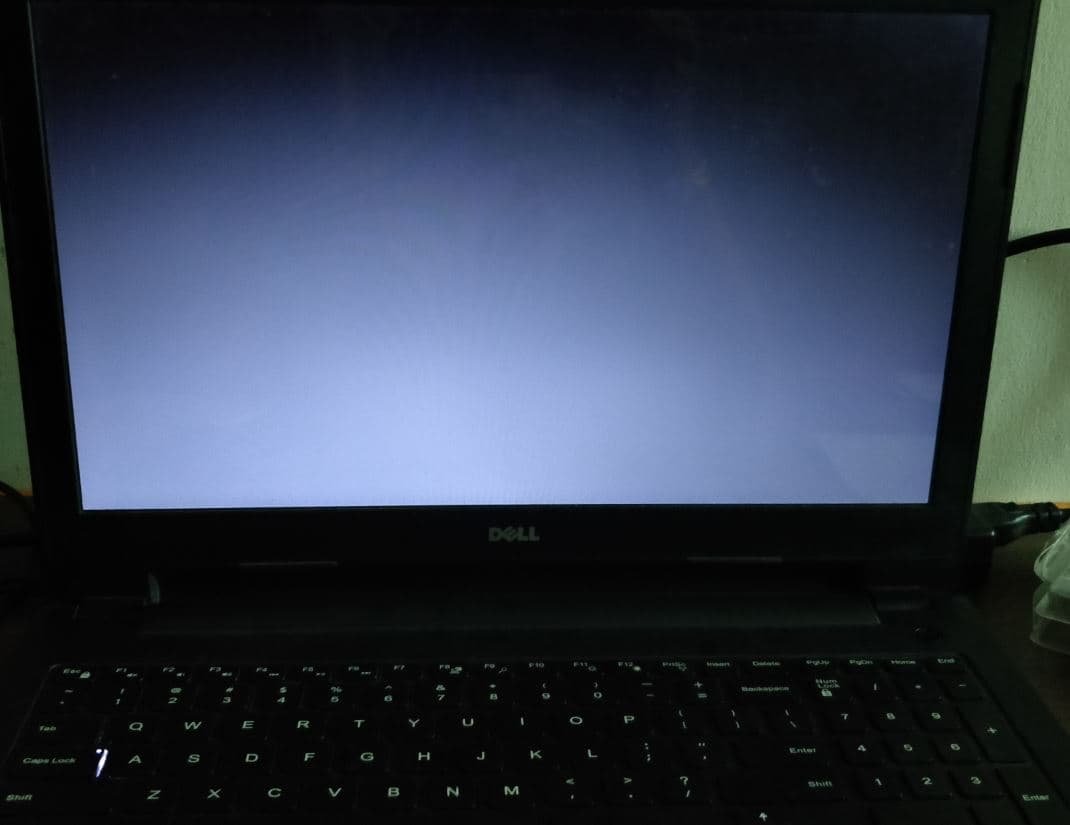
A sudden, blank black screen on your laptop can trigger a unique blend of panic and frustration. One moment you're working, browsing, or gaming, and the next, your digital world goes dark. While many black screen issues are surprisingly simple to fix yourself, there comes a point when you're better off handing your device to a professional. Knowing when to seek professional help for laptop black screen isn't just about saving money; it's about protecting your data, your sanity, and often, the laptop itself from further damage.
Think of this guide as your seasoned co-pilot, helping you navigate the murky waters of a dead display. We'll walk through the essential self-checks, pinpoint the tell-tale signs of a deeper problem, and clarify precisely when it's time to call in the experts.
At a Glance: When to Call the Pros
Before we dive deep, here’s a quick rundown of situations where professional help for a black screen is almost certainly your best bet:
- No Backlight, Faint Image: You can see a desktop with a flashlight, but the screen is otherwise dark.
- Physical Damage: Visible cracks, liquid spills, or a screen that flickers/blinks with lid movement.
- Repeated Error Codes: Your laptop beeps or flashes LEDs in a persistent, decipherable pattern.
- No "Life Signs" After Basic Power Checks: No fans, no lights, no sound, even after trying different outlets/chargers.
- External Monitor Also Fails: Both your laptop screen and an external display show nothing.
- Post-Update/Repair Fiasco: The problem started after a DIY repair, or a software update rendered your system unresponsive.
- Under Warranty: Don't risk voiding it by opening up the machine.
- Time or Expertise Limited: You simply don't have the time, tools, or comfort level for deeper troubleshooting.
Demystifying the Black Screen: What's Going On?
A black screen means your laptop's display isn't showing anything, but it doesn't necessarily mean your laptop is dead. The machine might be running fine in the background, just not sending a signal to the screen.
The causes can range wildly:
- Loose Connections: A simple cable inside has come undone.
- Software Glitches: A bad driver, a buggy update, or an OS crash.
- Power Problems: Not enough juice, or a faulty charging circuit.
- Hardware Failure: A dead screen, a failing graphics chip, or even deeper motherboard issues.
Your journey to a fix, or to a professional, begins with systematic elimination. You’ve likely already tried a few things, but let’s ensure you’ve covered the truly universal "quick wins" before deciding on next steps. For a broader look at self-troubleshooting, you might find our guide on how to fix a black screen on your laptop incredibly helpful.
Your First Line of Defense: The Essential Quick Wins
Before you even think about professional help, these universal troubleshooting steps are non-negotiable. They often resolve the most common, benign black screen scenarios. If you've tried all of these without success, that's your first major clue you might be dealing with something more complex.
1. The Force Restart
Sometimes, the system just gets "stuck."
- How to: Press and hold your laptop's power button for a solid 15-20 seconds. This forces a hard shutdown. Wait a few seconds, then press the power button normally to restart.
- Why it works: Clears temporary software hangs and refreshes the system.
2. Power Cycle & Static Discharge
This is akin to giving your laptop a hard reset, clearing any residual electrical charge that might be confusing the system.
- How to:
- Unplug the AC adapter.
- If your laptop has a removable battery, take it out.
- Press and hold the power button for 30-45 seconds. This drains any leftover charge.
- Reconnect the battery (if removed) and plug in the charger.
- Power on your laptop.
- Why it works: Discharges static electricity that can interfere with boot processes or component communication.
3. Verify Your Power Source
Seems obvious, but a faulty charger or outlet is a surprisingly common culprit.
- How to:
- Check if the LED on your laptop's charger (if it has one) is lit. If not, the charger might be dead.
- Try plugging your charger into a different wall outlet.
- If you have access to a compatible, known-good charger, try using that.
- If your laptop's battery was critically low before the black screen, let it charge for 10-15 minutes before attempting to power on again.
- Why it works: Ensures your laptop is receiving consistent, adequate power to boot up and run the display.
4. Brightness Check & Lid Sensor Wiggle
A simple oversight or a minor physical hiccup can make all the difference.
- How to:
- Tap your laptop's brightness up (
Fn+ brightness key, often F5, F6, F7, or F8) repeatedly. The screen might just be dimmed to zero. - Slowly open and close your laptop lid a few times. Sometimes, a faulty lid sensor or a loose hinge connection can trigger a black screen.
- Why it works: Rules out accidental brightness adjustments and potential issues with the sensor that tells your laptop the lid's position.
5. The External Display Test
This is a crucial diagnostic step that helps differentiate between a problem with your laptop's internal display/cable and a deeper system or graphics issue.
- How to: Connect your laptop to an external monitor or TV using an HDMI, DisplayPort, or USB-C cable. Turn on the external display and select the correct input.
- What it tells you:
- If the external display works: Great news! Your laptop's core system (CPU, RAM, GPU) is likely functional. The problem is almost certainly with your laptop's internal screen, its connecting cable, or the backlight. This scenario often leans towards professional hardware repair.
- If the external display also shows nothing: This indicates a more severe issue, potentially with the graphics card (GPU), motherboard, or even a critical software failure preventing any display output. This definitely points towards a professional diagnosis.
- Why it works: Isolates the display component, narrowing down the potential problem area significantly.
6. Disconnect All Peripherals
External devices can sometimes interfere with the boot process or hijack display output.
- How to: Unplug everything – USB drives, SD cards, docking stations, external monitors, mice, keyboards, even external GPUs.
- Why it works: Eliminates interference from potentially faulty or conflicting peripherals.
7. The Flashlight Test
This ingenious little trick can provide surprisingly definitive answers.
- How to: Turn off the lights in your room. Shine a bright flashlight (like from your phone) at an angle across your laptop screen, very close to the display. Look for a faint image of your desktop, login screen, or anything at all.
- What it tells you:
- If you see a faint image: This is a clear indicator. Your laptop's LCD panel is working and rendering an image, but the backlight (the light source behind the LCD) has failed. This almost always requires professional hardware repair to replace the screen or its backlight components.
- If you see nothing: The issue is likely deeper than just the backlight, perhaps the LCD panel itself, the display cable, or the graphics output.
- Why it works: Helps you differentiate between a display that isn't receiving a signal and a display that's receiving a signal but lacks illumination.
If you’ve systematically worked through these seven quick wins and your screen remains stubbornly black, you've exhausted the most common and easiest fixes. At this point, you're transitioning from simple troubleshooting to needing a more advanced diagnosis, which often means professional help.
Deeper Dives: When Symptoms Shout "Pro Help!"
Beyond the quick wins, certain symptoms and troubleshooting dead-ends are strong indicators that you should seek professional assistance. This is where your assessment shifts from "Can I fix this?" to "Is this beyond my skill set, tools, or comfort zone?"
When Your Laptop is Totally Dead
Symptom: No lights, no fans, no sound – nothing at all happens when you press the power button. It's completely unresponsive.
What you might have tried: Different outlets, different chargers, the 30-45 second power button hold.
Why it's a job for the pros: If these basic power checks fail, the issue is almost certainly a fundamental power delivery problem. This could be a faulty charging port (DC-in jack), a dead battery (if internal and not removable), or, most critically, a failure on the motherboard's power circuitry. Diagnosing and repairing these require specialized tools (multimeters, oscilloscopes), soldering skills, and intimate knowledge of motherboard schematics – definitely not a DIY job for the average user.
When Fans & Lights are On, But No Display (No Logo)
Symptom: You hear fans spin, keyboard backlights might come on, or status LEDs activate, but the screen remains black, and you don't even see the manufacturer logo or BIOS splash screen.
What you might have tried: Hard power cycle, disconnecting all peripherals, external monitor test (which also shows nothing).
Why it's a job for the pros: This indicates a core component failure before the operating system even tries to load. Common culprits include:
- RAM Issues: Unseated or faulty RAM can prevent boot. While you can sometimes reseat RAM yourself (if easily accessible and not soldered), persistent issues with one stick at a time point to deeper problems.
- CPU/GPU Problems: A failing processor or integrated/dedicated graphics chip can cause this.
- Corrupt BIOS/UEFI: While a BIOS reset might sometimes help, a corrupted firmware chip requires specialized programming tools.
- Motherboard Failure: Many components are integrated. If the external monitor also fails, it often points to a fundamental issue with the main logic board.
Professionals have diagnostic tools and spare parts to systematically test these components.
Faint Image with Flashlight Confirmed
Symptom: You've performed the flashlight test and clearly see a faint image on the screen, but it's otherwise dark.
What you might have tried: Adjusting brightness settings, connecting an external monitor (which works fine).
Why it's a job for the pros: As discussed, this means your LCD panel is working, but its backlight has failed.
- Backlight Inverter: An older CCFL backlight might have a faulty inverter.
- LED Backlight Array: Modern LED screens have an array of tiny LEDs. If these fail, or their power circuit does, the screen goes dark.
- Display Cable Damage: Sometimes the cable connecting the motherboard to the screen carries both video and backlight power signals, and a fault here can affect only the backlight.
Replacing a backlight is intricate work, often requiring a full screen replacement or precise component-level repair, which is best left to experienced technicians.
Screen Flickers or Goes Black with Lid Movement
Symptom: The screen flickers, glitches, or goes completely black only when you open, close, or wiggle the laptop lid.
What you might have tried: Gently opening and closing the lid.
Why it's a job for the pros: This is a classic symptom of a damaged or loose display cable running through the laptop's hinge assembly. The constant flexing and movement of the lid can wear down or sever these delicate wires.
- LCD Ribbon Cable Damage: The cable itself can fray or tear.
- Hinge Damage: Physical damage to the hinges can pinch or strain the cable.
Replacing these cables often involves significant disassembly of the laptop's bezel, screen, and chassis, which carries a high risk of causing further damage if not done correctly.
Black Screen After a Software Update (and Safe Mode Fails)
Symptom: Your laptop was working fine, but after a recent Windows update, driver installation (especially for graphics), or even a new software install, the screen is black.
What you might have tried: Win + Ctrl + Shift + B (Windows graphics driver reset), cycling display modes (Win + P), attempting to boot into Safe Mode (and failing or having no visible output in Safe Mode).
Why it's a job for the pros: While many update-related black screens can be fixed by rolling back drivers or uninstalling updates in Safe Mode, if you can't even reach Safe Mode, or if the problem persists even after driver manipulation, it suggests a more deeply entrenched issue:
- Corrupt OS Boot Files: The update might have damaged critical system files.
- Firmware Conflict: Rare, but an OS update can sometimes conflict with BIOS/UEFI firmware, leading to boot issues.
- Hardware Unmasked: The update didn't cause the hardware problem, but it exposed an underlying instability in a component like the GPU, which couldn't handle the new driver.
A professional can attempt more advanced OS repair options from a bootable USB, or even perform a fresh OS install after thoroughly testing the hardware to ensure it wasn't the underlying cause.
Persistent Beep Codes or LED Error Patterns
Symptom: When you try to power on, the laptop emits a series of beeps, or its power/status LEDs flash in a specific sequence, and the screen remains black.
What you might have tried: Noting the beep/LED pattern.
Why it's a job for the pros: These aren't random sounds or lights; they're diagnostic codes from your laptop's BIOS/UEFI firmware. Different patterns correspond to specific hardware failures (e.g., three short beeps often mean RAM issues, one long and two short might mean GPU failure).
- Manufacturer Specific: The exact meaning varies greatly by laptop brand and model.
- Pinpointing Failure: While you can look up the codes, repairing the underlying component (e.g., replacing a faulty motherboard, CPU, or dedicated GPU) requires professional expertise and parts.
If reseating easily accessible components like RAM doesn't resolve the beep codes, a professional is best equipped to interpret the codes and perform the necessary repair.
Evidence of Liquid Damage or Burnt Smell
Symptom: You spilled something on your laptop, or you detect a distinct burning smell when trying to power it on.
What you might have tried: Nothing, hopefully, beyond immediate power-off.
Why it's urgently a job for the pros: Liquid damage can cause short circuits and corrosion that spread rapidly. A burning smell indicates a component has overheated and is likely damaged (or actively damaging) due to an electrical short or power surge.
- Corrosion: Liquid can corrode delicate circuits over time, causing intermittent or permanent failures.
- Short Circuits: Leads to immediate component failure and can damage other parts.
Immediately power down (and remove the battery if safe and easy), then take it to a professional. Attempting to power on a liquid-damaged laptop can cause irreversible damage. A professional can quickly assess the damage, clean and repair affected components, potentially saving your laptop and your data.
Platform-Specific Fixes: When They Fail, Professionals Prevail
Even platform-specific troubleshooting steps, like booting into Safe Mode on Windows or resetting the SMC/NVRAM on macOS, have their limits. If you've tried these and still face a black screen, it underscores the need for expert intervention.
Windows Woes: Beyond Safe Mode & Driver Resets
You've tried Win + Ctrl + Shift + B, explorer.exe relaunch, Win + P blindly, and even managed to boot into Safe Mode to roll back a driver or uninstall an update, but the problem persists. If your Windows laptop still gives you a black screen or quickly reverts to it, it might signal:
- Deep OS Corruption: Beyond simple file repairs, needing an in-place upgrade or full reinstall.
- Persistent Driver Conflict: Even a clean driver install might not resolve an underlying incompatibility.
- BIOS/UEFI Instability: Issues with Fast Startup, secure boot, or graphics switching that require deeper investigation.
- Hidden BitLocker: Sometimes a black screen is just a hidden BitLocker prompt that only shows on an external display. If you've checked that avenue and still have nothing, the problem is deeper.
A professional can leverage advanced Windows Recovery Environment tools, specialized boot diagnostics, or even forensic-level analysis to uncover root causes that casual users can't.
macOS Mysteries: When Recovery & Resets Don't Help
For Mac users, you've likely tried a force shutdown, Safe Mode, and for Intel Macs, SMC and NVRAM resets. If even reinstalling macOS from Recovery Mode doesn't bring your display back to life, the problem is almost certainly hardware-related.
- Apple Silicon (M-series): Issues often point to the unified memory/system on a chip (SoC) or display controller, which are highly integrated and not user-serviceable.
- Intel Macs: Beyond SMC/NVRAM, persistent black screens often mean GPU failure (especially on models with discrete graphics), display cable issues, or logic board components.
Apple-authorized service providers or reputable independent Mac repair shops have the diagnostic tools specific to Apple hardware to pinpoint these failures and perform complex repairs.
ChromeOS & Linux: When Command Line Can't Conquer
If your ChromeOS device remains black after a Hard Reset or EC Reset, or your Linux machine refuses to cooperate even after accessing TTY, restarting display managers, or booting with nomodeset and trying different kernels/drivers, you're likely facing hardware failure.
- ChromeOS: Its simplicity means fewer software variables. A persistent black screen often points to internal hardware.
- Linux: While flexible, if core display managers won't restart and basic kernel parameters don't help, it's often a GPU, display cable, or motherboard problem.
For these platforms, persistent display issues after exhaustive software troubleshooting are strong indicators for professional hardware inspection.
Data Safeguarding: A Crucial Step Before Repair
Regardless of whether you tackle the repair yourself or hand it over to a professional, your data is paramount. A black screen means you can't access your files, but the data is very likely still on the internal storage drive.
- If you plan to send it for repair: Always back up your data beforehand if possible. If you can't boot the system at all, ask the repair shop about data recovery services before they start working on the laptop.
- Your options for retrieval:
- Bootable USB: If your laptop can still technically boot (even if the screen is black), you might be able to create a bootable Windows installer, macOS installer, or a Linux live USB on another computer. Booting from this can sometimes allow you to access your laptop's internal drive and copy files to an external drive.
- Drive Enclosure: This is often the safest bet. If you or a professional can carefully remove your laptop's internal SSD (NVMe or SATA), you can then place it into an inexpensive USB drive enclosure. This turns your laptop's internal drive into an external hard drive, allowing you to connect it to a working computer and copy your precious files. This is a critical step to take before any potentially destructive repairs (like a full OS reinstall).
Make sure your data is secure before any invasive repairs begin. A good technician will always prioritize your data, but it's your responsibility to ensure it's backed up.
The Decisive Moment: When to Absolutely Seek Professional Help for Laptop Black Screen
We've covered a lot of ground, but let's consolidate the key decision points. You should confidently seek professional help for your black screen when:
- You've done the Flashlight Test and See a Faint Image: This confirms a backlight failure, which is a specific hardware repair requiring component replacement (often the entire screen assembly).
- Your External Display Also Shows Nothing: If your laptop can't send a signal to any screen, it points to a major issue with the graphics chip (GPU), motherboard, or a critical boot failure that requires advanced diagnostics.
- The Screen Flickers or Dies with Lid Movement: This is almost always a worn or damaged display cable within the hinge, necessitating a careful disassembly and replacement.
- You Hear Repeating Beeps or See Error LED Patterns: These are system-level error codes indicating specific hardware faults (e.g., RAM, GPU, CPU). While you can look them up, the repair typically requires component-level work.
- There's Evidence of Physical Trauma: Liquid spills, a burnt smell, or a visibly cracked screen are direct calls for professional attention. Liquid damage, in particular, requires immediate and expert intervention to prevent further corrosion.
- The Laptop is Completely Dead (No Lights, No Fans) After Power Checks: If it doesn't even attempt to power on with different chargers/outlets and after a full power cycle, it's likely a power circuit or motherboard failure.
- You've Exhausted All Software Fixes (Safe Mode, Driver Rollbacks, OS Reinstall Attempts): If even a clean OS install from recovery media doesn't resolve the black screen, it's virtually certain the problem is hardware-related.
- Your Laptop is Still Under Warranty: Opening the chassis yourself will almost certainly void your warranty. Let the manufacturer's authorized service center handle it. It's often free!
- You Lack the Tools, Skills, or Confidence: Laptop repair involves small, delicate components, specialized tools (like precision screwdrivers, spudgers, anti-static mats), and the risk of causing more damage. If you're not comfortable, don't risk it. Your time is valuable, and sometimes paying a professional is the most cost-effective solution in the long run.
Prevention is Key: Avoiding Future Black Screens
While some failures are inevitable, many black screen issues can be prevented with good habits:
- Update Drivers Sensibly: Stick to manufacturer-provided GPU drivers for your specific laptop model. Generic drivers or auto-updaters can sometimes cause conflicts.
- Create System Restore Points (Windows): Before major updates or software installations, manually create a restore point. This is your digital "undo button."
- Avoid Forced Power-Offs: Never force shut down your laptop (by holding the power button) during updates. Let it complete its process, even if it seems stuck.
- Maintain Airflow: Keep your laptop's vents clear of dust and debris. Use it on hard, flat surfaces. Overheating can damage internal components, including the GPU, leading to black screens.
- Use Quality, Compatible Chargers: Inconsistent or incorrect power can cause erratic behavior and damage power circuitry.
- Handle Your Laptop Gently: Avoid dropping it, and open/close the lid smoothly. Stress on the hinges can lead to display cable damage.
The Final Word
A black screen is never ideal, but it's often a solvable problem. By systematically troubleshooting and understanding the underlying causes, you can make an informed decision. For many, the simple quick wins will be enough. But for those persistent, hardware-centric issues, knowing when to seek professional help for laptop black screen is your smartest move. It preserves your investment, safeguards your data, and gets you back to productivity with minimal fuss. Don't be afraid to call in the experts – they have the experience and tools to diagnose and resolve even the most stubborn black screen mysteries.